How to Download Your Online Gallery (Step-by-Step Guide)
Receiving your online gallery is one of the most exciting parts of your photography experience! After waiting to see your beautiful images, you’ll want to download them, back them up, and start sharing them with family and friends.
If you’re wondering how to download your online gallery, don’t worry, it’s easier than you might think. This simple step-by-step guide will walk you through the entire process.

Don’t worry if this is your first time downloading an online gallery! Whether you’re using a Windows PC or a Mac, the process is quick and easy. In just a few minutes, you’ll have your high-resolution images safely saved to your computer and ready for printing, sharing, and backing up.
How to Download Your Online Gallery
When your photographer sends your gallery by email, you’ll receive a link to your online gallery along with instructions and a PIN number. Follow these steps to download your images to your computer.
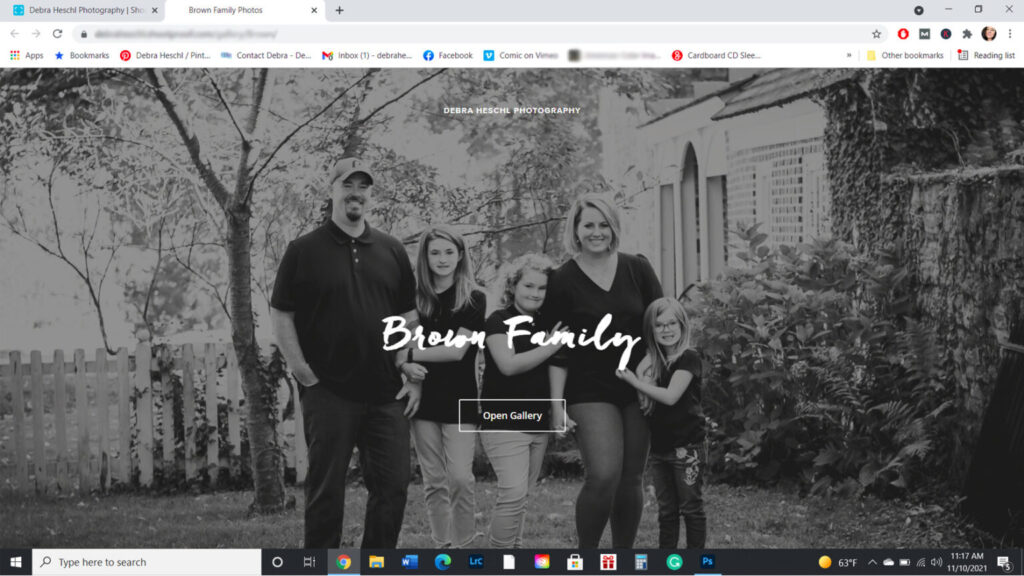
Step 1: Open Your Gallery
Open the email you received from your photographer and click the gallery link.
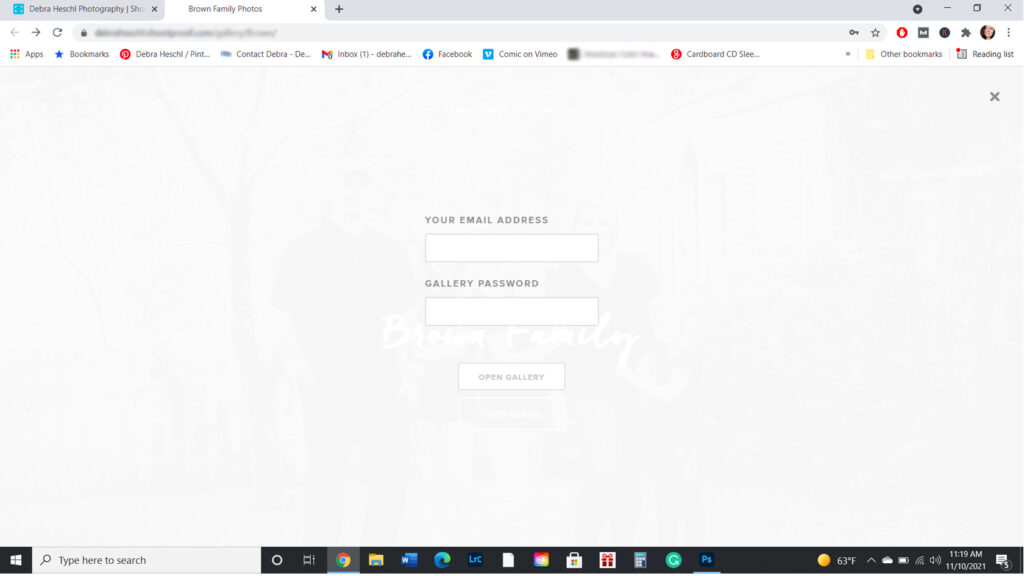
Step 2: Sign In
Enter your email address and password, then click Open Gallery.
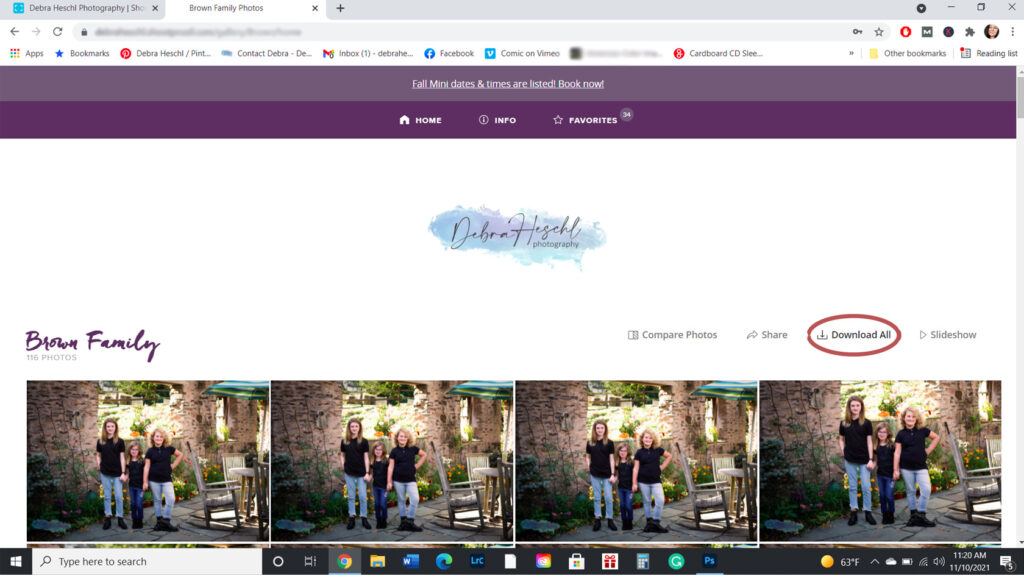
Step 3: Click “Download All”
Once your gallery opens, locate the Download All button in the upper-right corner of the screen next to Slideshow.
Step 4: Enter Your PIN
A pop-up window will appear asking for your 4-digit PIN.
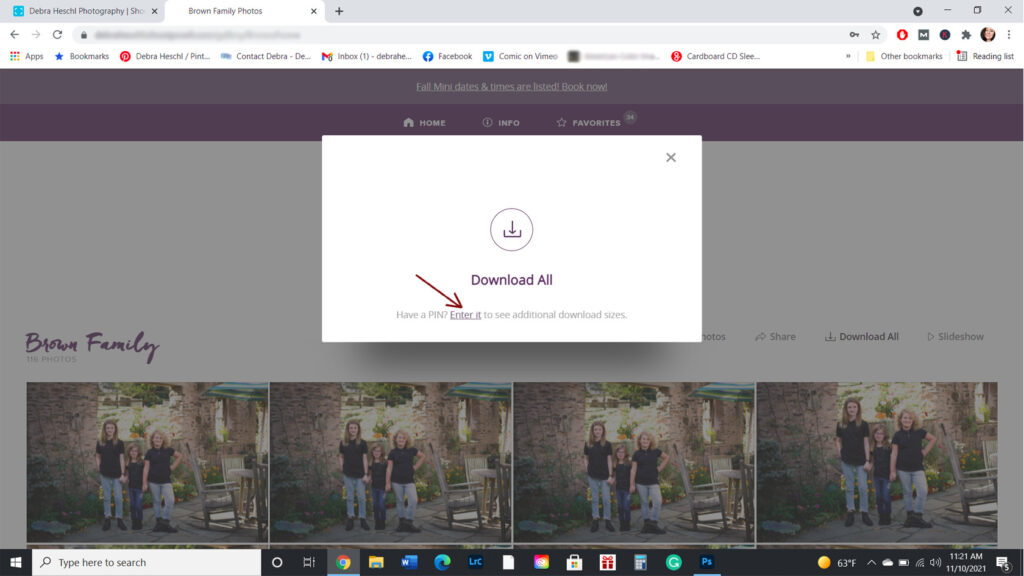
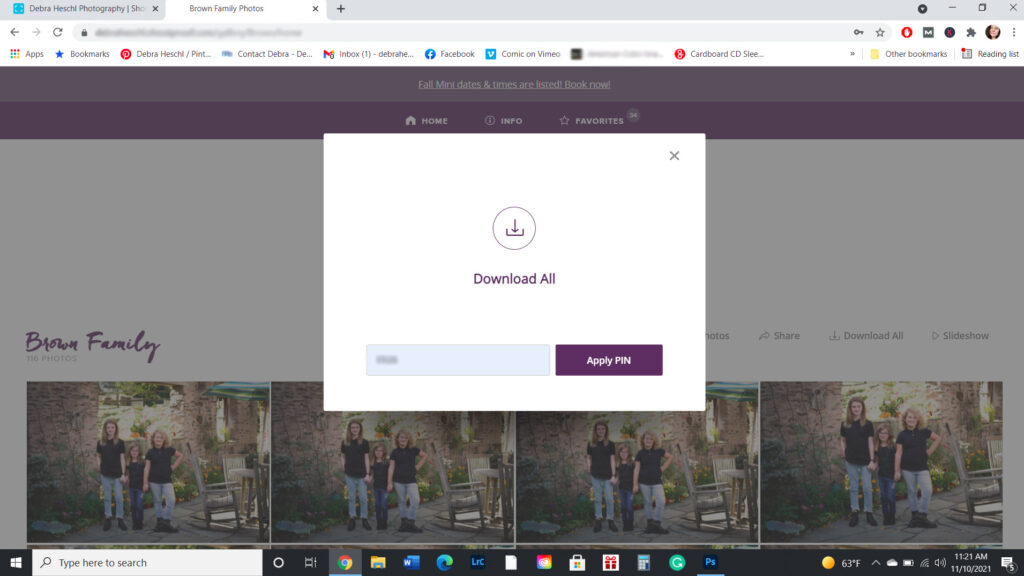
Step 5: Apply Your Pin
Enter the PIN that was included in your gallery email, then click Apply PIN.
Step 6: Download Additional Files
Another window will appear asking which files you’d like to download. Select the file you’d like to download.
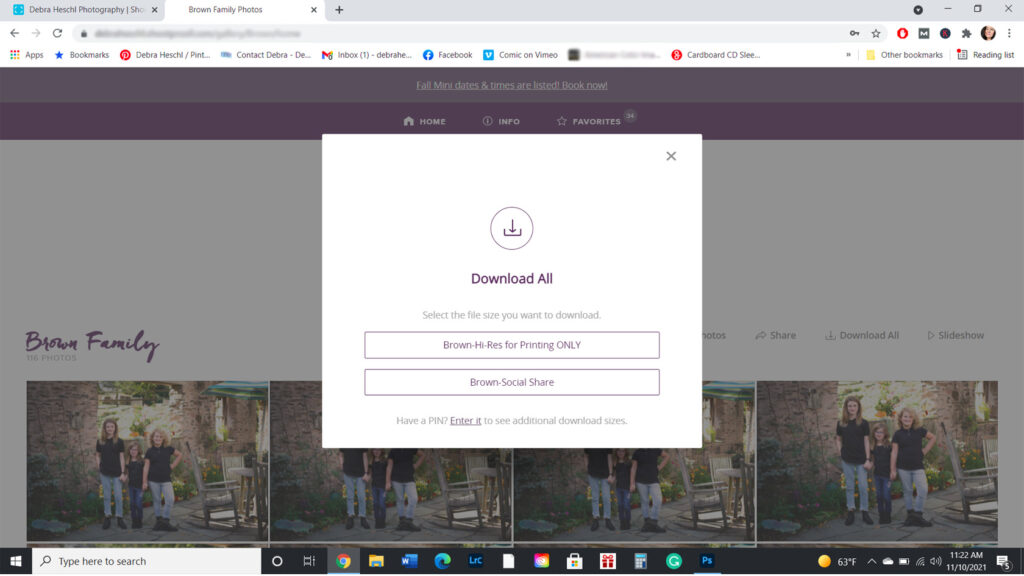
Depending on your gallery, you may have options such as:
- Original High-Resolution Images
- Social Share Images
Note: If your gallery is very large, your photographer’s gallery service may email you a download link instead of downloading immediately.
If both file types are available, you’ll need to enter your PIN again to download the second file.
Step 7: Wait for the ZIP File
Once your download is ready, a ZIP file will begin downloading to your computer.
If your gallery contains multiple ZIP files, repeat the process until all files have finished downloading.
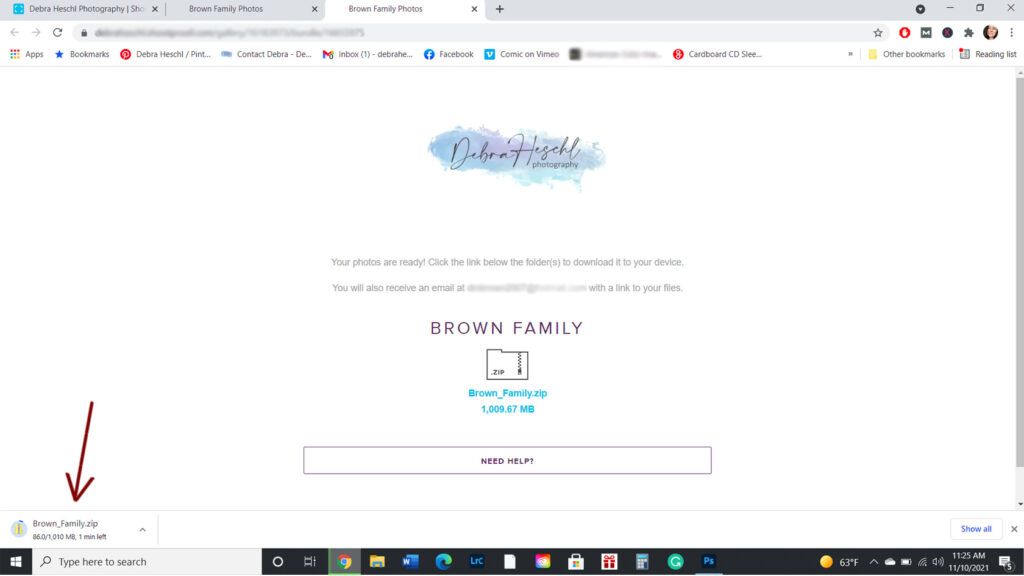
Step 8: Open and Extract Your ZIP File
Once the download is complete, the ZIP file will appear in your computer’s Downloads folder. Double-click the ZIP file to extract its contents, then save the images to your preferred location on your computer.
If your gallery includes more than one ZIP file, repeat this process until all files have been downloaded and extracted.
Note: The process for extracting a ZIP file is slightly different on Mac and Windows computers. If you’re unsure how to unzip your files, see the helpful links below.
What’s the Difference Between Social Share and High-Resolution Images?
Understanding the difference helps ensure you’re using the right files.
Social Share Images
These smaller files are perfect for:
- Emailing friends and family
- Sharing online
They are not intended for printing.
Original High-Resolution Images
These larger files are designed for:
- Professional printing
- Enlargements
- Canvas prints
- Albums
- Long-term storage
Always use your original high-resolution images when ordering prints.
Download Your Gallery to a Computer Only
For the best experience, always download your online gallery to a desktop or laptop computer.
Avoid downloading your gallery directly to:
- Cell phones
- iPads
- Tablets
Downloading to a computer helps prevent incomplete downloads and makes it much easier to organize and back up your images.

Don’t Forget to Back Up Your Photos
Your digital images are precious memories, so be sure to create a backup as soon as you’ve downloaded them.
Some great backup options include:
- External hard drive
- Cloud storage
- Additional computer
- USB drive
If you’d like your images on a USB drive or disc, they’re available for purchase for $45 (+ tax), including shipping and handling.
How to Open a ZIP File
Your gallery will download as a ZIP file.
After the download finishes, locate the ZIP file in your computer’s Downloads folder and extract it before viewing your images.
The process is slightly different depending on your operating system.
Helpful guides:
- Mac Users: How to unzip a file on macOS
- PC Users: How to unzip a file in Windows
Once extracted, save your images to your preferred folder so they’re easy to find.
You’re Ready to Enjoy Your Photos!
Congratulations! Your gallery has been successfully downloaded.
Now you can:
- Print your favorite images.
- Share your social media files with family and friends.
- Create albums and wall art.
- Safely back up your memories for years to come.
Common Download Problems and How to Fix Them
If you’re having trouble downloading your online gallery, don’t worry! Most issues are easy to resolve. Here are some of the most common problems and simple solutions.
My Download Won’t Start
If nothing happens when you click Download All, try these troubleshooting steps:
- Refresh your browser and try again.
- Make sure you have a stable internet connection.
- Try using a different web browser, such as Chrome, Firefox, or Edge.
- Disable any pop-up blockers that may prevent the download from starting.
My PIN Isn’t Working
If your PIN is being rejected:
- Double-check that you’ve entered the correct 4-digit PIN from your gallery email.
- Make sure there are no extra spaces before or after the PIN.
- If you’re still having trouble, contact your photographer for assistance.
My ZIP File Won’t Open
If you’ve downloaded the ZIP file but can’t open it:
- Make sure the download finished completely.
- Try downloading the file again if it appears incomplete or corrupted.
- Double-click the ZIP file to extract the images before trying to view them.
- If you’re unsure how to unzip the file, refer to the Mac or Windows instructions linked above.
My Photos Look Small or Blurry
If your downloaded images don’t look as sharp as expected, you may have opened the Social Share folder instead of the Original High-Resolution folder.
Remember:
- Social Share Images are designed for Facebook, Instagram, and other social media platforms.
- Original High-Resolution Images should be used for printing and enlargements.
I Can’t Find My Downloaded Photos
Most computers automatically save downloaded files in the Downloads folder.
If you don’t see your gallery there:
- Search your computer for the ZIP file by name.
- Check your browser’s download history.
- Try downloading the gallery again if necessary.

I Still Need Help
If you’ve tried the suggestions above and are still having trouble downloading your online gallery, don’t hesitate to contact your photographer. They’ll be happy to help you access your images and make sure you can enjoy them without any frustration.
If you experience any problems downloading your gallery, don’t hesitate to contact your photographer for assistance.
Recommended Posts You’ll Fancy!


Frequently Asked Questions
Conclusion
Downloading your online gallery is the final step before you can start enjoying your beautiful photos. By following this step-by-step guide, you’ll have your images safely saved to your computer, backed up for future use, and ready to print or share with family and friends.
Remember to download your gallery to a computer, keep a backup of your high-resolution images, and use the Social Share files for posting online. Taking a few extra minutes now will help ensure your memories are protected for years to come.
If you have any questions or experience trouble downloading your online gallery, don’t hesitate to contact your photographer. They’ll be happy to help you access your images so you can begin enjoying them right away.
Pin for Later!